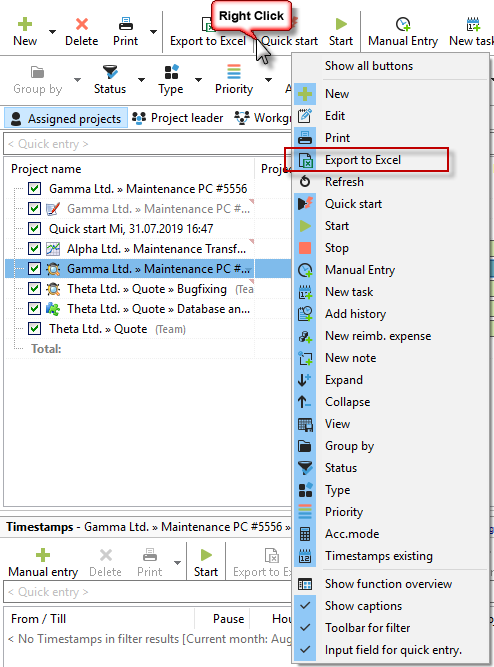
In many areas of Xpert-Timer, you can export your data to Excel for further processing. To do this, Excel export must be activated in the configuration. You can find the setting in the Advanced -> General area.

Once activated, buttons for Excel export are available in many areas. If you do not see them, they may be hidden. You can display the export button by right-clicking on the button bar.
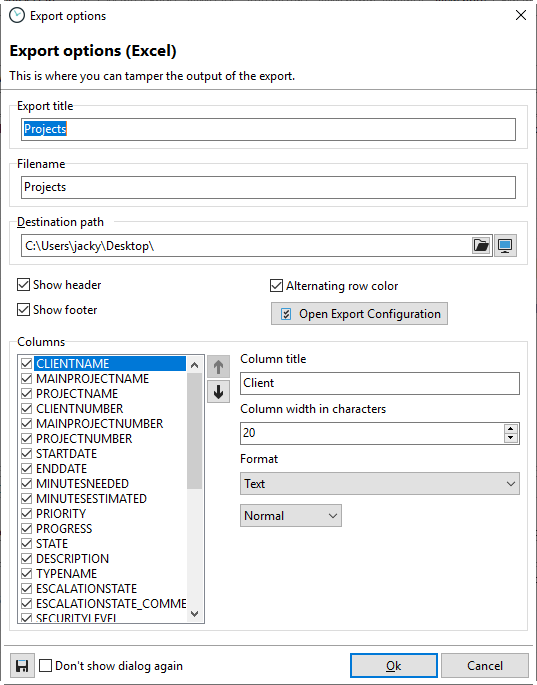
The export dialog looks similar in all areas:
The "Open export configuration" button takes you to the Xpert-Timer configuration. There, in the User -> Export section, you can make precise settings for the formats of your Excel export.
Use the column table to select which data should be included in your Excel export. Experiment with the settings until you get the correct display in your Excel sheet.
To save your settings, enter a name in the "Config." drop-down menu. This will make the saved setting available under "Load" the next time you use it.