The evaluation module offers you numerous filter and grouping options.
|
Note |
|---|---|
It is important to set the filter to the billing mode for the projects. This filter is not explicitly mentioned in the examples. To calculate the bill to the customer, you should set the filter for the billing mode of the projects to "Internal calculation & billing only." Non-billable projects are not relevant when billing a customer. |
|

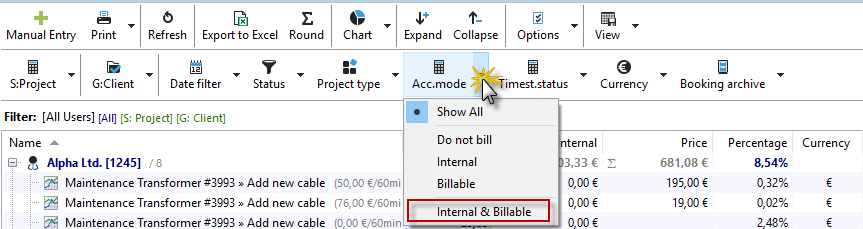
If you want to use the evaluation for your internal purposes, the "non-billable" projects should also be included.
On the left side of your evaluation dialog, you will see the "Employees" and "Customers" tabs. These are used to filter the data. You can select one or more employees and include one or more customers in your evaluation.
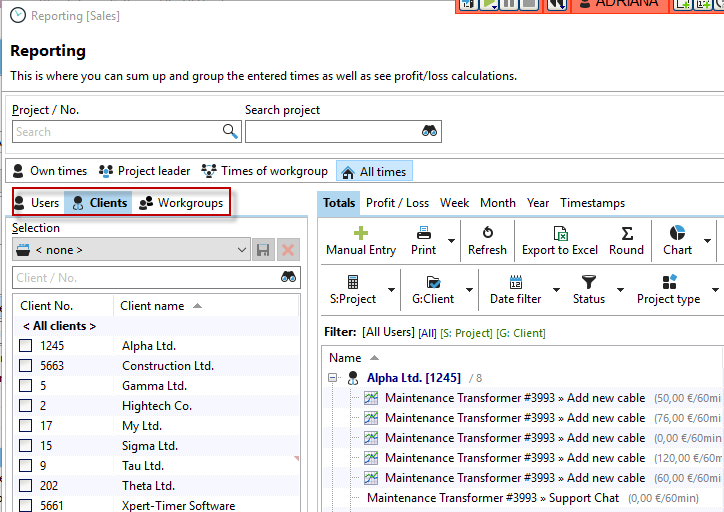
The following combinations are available. To see a detailed description of the settings, please click on a combination.
Filter
Employee evaluations
3.Which employee worked how many hours in which month? (view grouped by month or grouped by employee)
4.How many hours did employees bill to customers?
7.Which employee works on which customers? (C: Customer, E: Employee)
8.How many hours did an employee bill for a task? (S: task, G: employee)
12.How many hours has the employee recorded in the year (S: Year, G: Employee)
Customer evaluations
2.How many hours were incurred per customer?
3.Which customer requires how many hours of a particular project type?
5.What were the most time-consuming tasks per customer (S: Task, C: Customer, sorted by time required)
6.How much effort was required for the customer per billing mode (S: billing mode, C: customer)
8.For which customers were which times incurred in which month? (S:Month, C:Customer)
9.How many times were incurred per employee in a year (S: Year, C: Customer)
Project evaluations
1.How many hours were incurred per project type? (Filtering by employee possible)
2.How many hours are allocated to billable, non-billable, and internal projects? (S: billing mode)
6.Which tasks were processed in the month/year? (S: Task, G: Month)
7.How much time was spent on a project type for the customer (S: Project type, G: Customer)
8.How much time was spent on a project type in the month/year (S: Project type, G: Month/year)
10.Are there any time stamps in the month that have not yet been billed (S: Time status, G: Month)?
11.For which project were which times incurred in which month? (S:Month, G:Project)
12.How many times were incurred per project in a year (S: Year, G: Project)
13.Which projects were worked on under which project manager and for how long (S: Project, G: Manager)
As you can see, numerous combinations can be displayed. Take your time and slowly familiarize yourself with the evaluation.
I need all timestamps that have not yet been billed for all billable projects. (Billing mode = Bill, Timestamp status = Not yet billed)
To see all time stamps that have not yet been billed for all billable projects, no employee is selected. Filtering should be done via "All employees." The "Billing mode" filter is set to "Bill" and refers to the billing mode of the project. In addition, the "Time stamp status" (Tm. status) filter is set to "Only 'not yet billed'" and refers explicitly to the individual time stamp mode. Set the "Totals" (T:Project) to "Project" so that the times and costs per project are displayed.

Which projects cannot be billed to the customer and how much time has been spent on them? (S: Project, billing mode = internal calculation)
Projects such as "Warranty service" or "Meetings" are calculated internally using the employee's costs, but cannot be billed to the customer. At the end of a billing period, you can evaluate how many hours were spent on such internally calculated projects. Do not select any employees, as the evaluation should be created for all employees. Set the billing mode to "internal calculation only." If necessary, you can always set an additional date filter.

Are there any explicit timestamps that have been marked by the employee as "not billable" even though the project is billable? (S: Project, timestamp status = not billable)
In the project, employees may record timestamps but decide that the recorded time should not be billed to the customer. In this case, the timestamp status is set to "not billable" by the employee. To filter whether and why such timestamps were recorded, set the timestamp status filter (Timestamp status) to "Only 'not billable'" and the summation to "Project."

To research even more precisely which timestamps are involved, switch to the "Individual times" tab. Here, too, set the timestamp status filter to "Only 'not billable'". Group by "Project". You will then see that the total for the project matches the figures in the summation. In addition, you can now check the individual timestamps and use the comments recorded for each one to decide whether the employees have set the timestamp status correctly.

How many hours did a specific employee bill to which projects this month? (S: Main project, G: Employee)
Filter for a specific employee in the employee list. Of course, you can also create this report for all employees. Then sum by main project, group by employee, and set the date filter accordingly. In our example, this is set to "Last month."

How many hours did employees bill to which projects last month? (also possible without a time period) (P: Project, E: Employee)
Here you can use two views as an evaluation. Either you sum by project and group by employee, or you sum by employee and group by project. In the first variant, you get an employee list with the corresponding projects, and in the second variant, you get a project list with the corresponding employees.
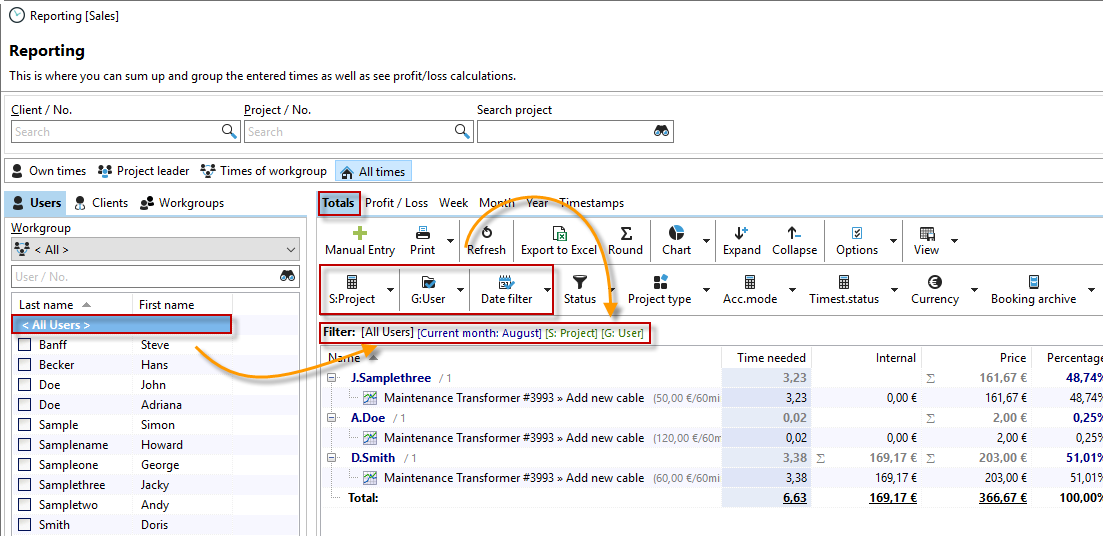
Select <All employees> to generate the list for all employees. Then set the summation to project and the grouping to employee, or vice versa. You can also set a date filter.
Which employee worked how much in which month? (S: Month, G: Employee)
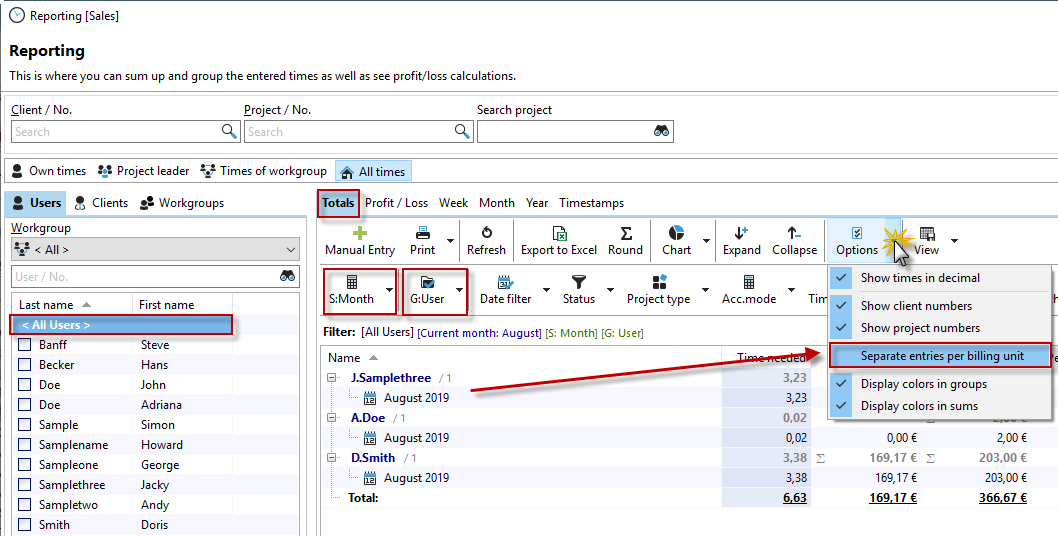
In this report, you also select "All employees." Then you sum by month and group by employee. You can also swap the view (sum by employee / group by month). In addition, select in the options that no separate entries are created per billing record, otherwise you will get multiple entries in your list if you work with different billing records in the projects.
How many hours did the employees bill to the customers? (S: Customer)
Select "All employees" and only the "Customer" total. This allows you to see at a glance how many hours were spent per customer. You can, of course, narrow down the selection by time period.

How many hours have all employees or a specific employee booked in a certain period? (not project-related) (S: Employee, date filter)
You need a simple report showing how many hours an employee has recorded in a specific period. To do this, set the total to "Employee," the date filter to the desired range (in the example: Last month), and select one or more employees on the left side.
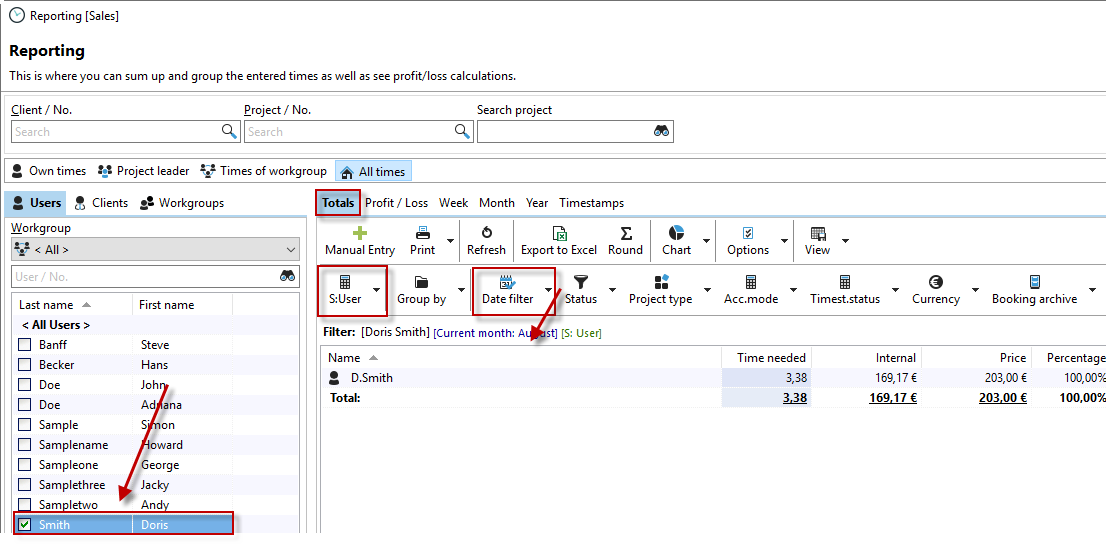
How many hours were recorded by employees on a daily/monthly/annual basis? (First timestamp - last timestamp) (S: Day, G: Employee)
To get an overview of the times recorded each day, you can create a report grouped by employee with the times recorded each day. In this view, you can see the first and last timestamps recorded. The "Time required" is calculated from the timestamps recorded between the times displayed. The time required is therefore not necessarily exactly the sum of the minutes between the first and last timestamps.
Select the "Separate entries per billing record" option in the options so that you can see the "Time required" as a total. Otherwise, you will see several lines for the same day from different billing records.
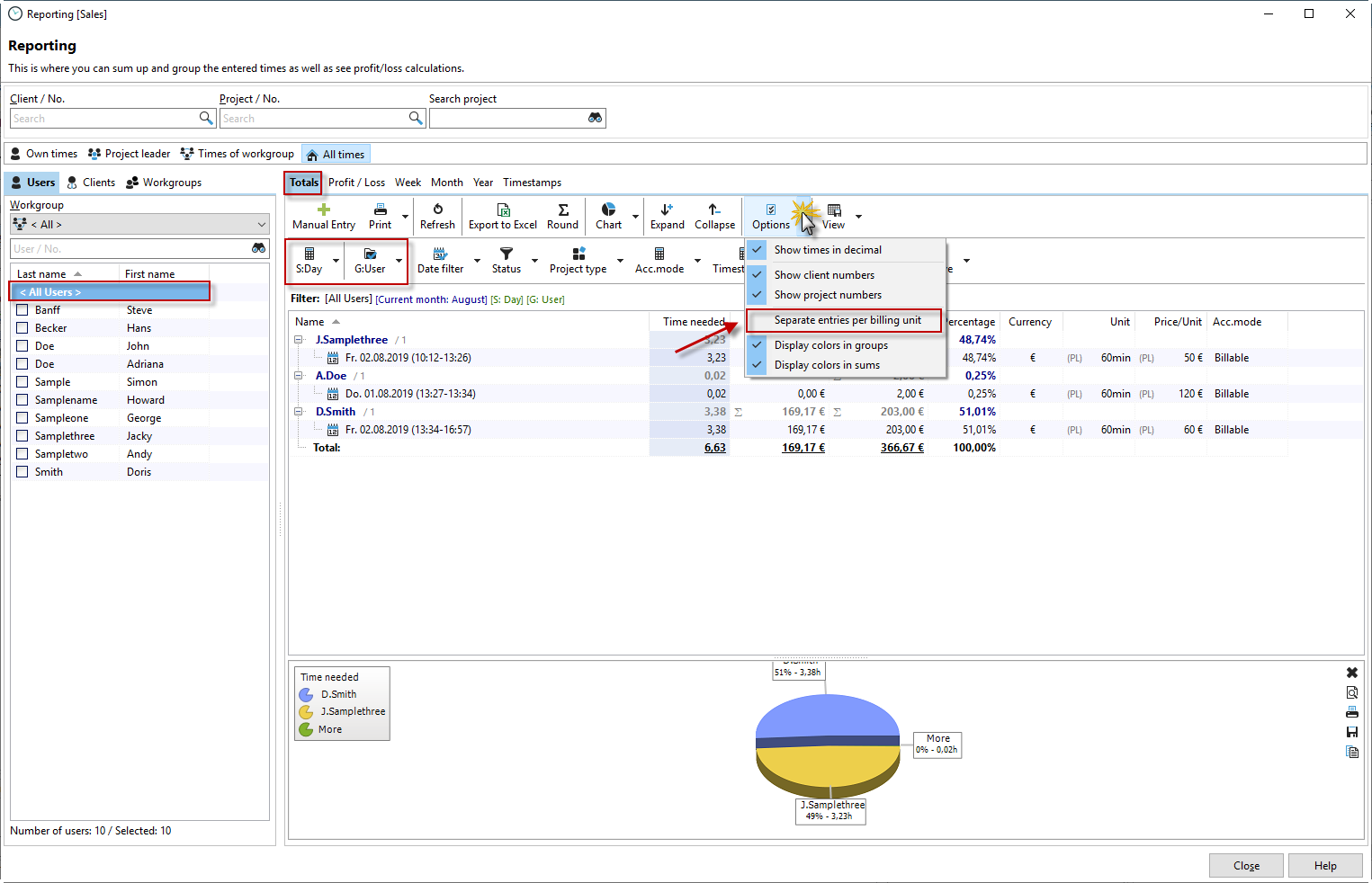
Which employee works on which customer? (C: Customer, E: Employee)
You can get an overview of the customers your employees are working on by setting the summation to "Customer" and the grouping to "Employee."
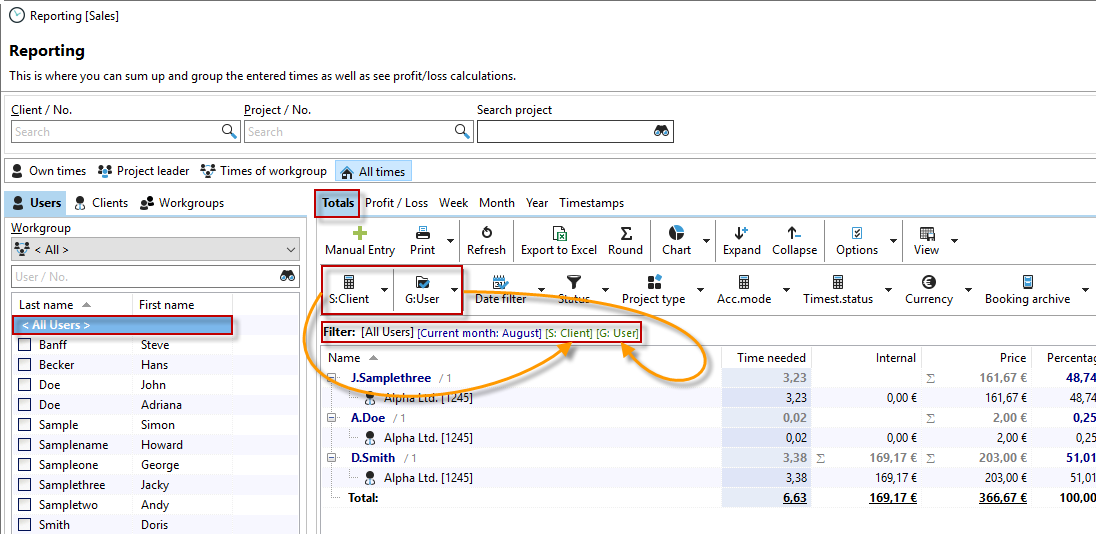
How many hours has an employee booked on a task? (S: Task, G: Employee)
You are interested in how many hours employees have booked on tasks. Select either "All employees" or a specific employee for the view. You will then see whether the hours were booked on a subproject (<no task>) or directly on a task.

Which employee worked on which project type, e.g., support, troubleshooting, external appointments, etc. (S: Project type, G: Employee)
Have you defined specific project types for certain projects? This allows you to determine how much time is spent on different project types, such as support. For example, how many hours of free support were provided in 2015? You can also set the date range according to your needs.

Which employee booked which project billing mode? (billable, internal, non-billable) (S: Billing mode, G: Employee)
Would you like to know how much time your employees have booked on internal or non-billable projects? Set the summation to "Billing mode" and the grouping to "Employee."

Does an employee have any timestamps that have not yet been billed? Has an employee recorded any timestamps that cannot be billed? (S: Timestamp status, G: Employee)
At the end of a billing period, it may be interesting to see whether there are still timestamps with the status "billable." These have not yet been recorded on an invoice. To do this, set the summation to "Timestamp status" and the grouping to "Employee."
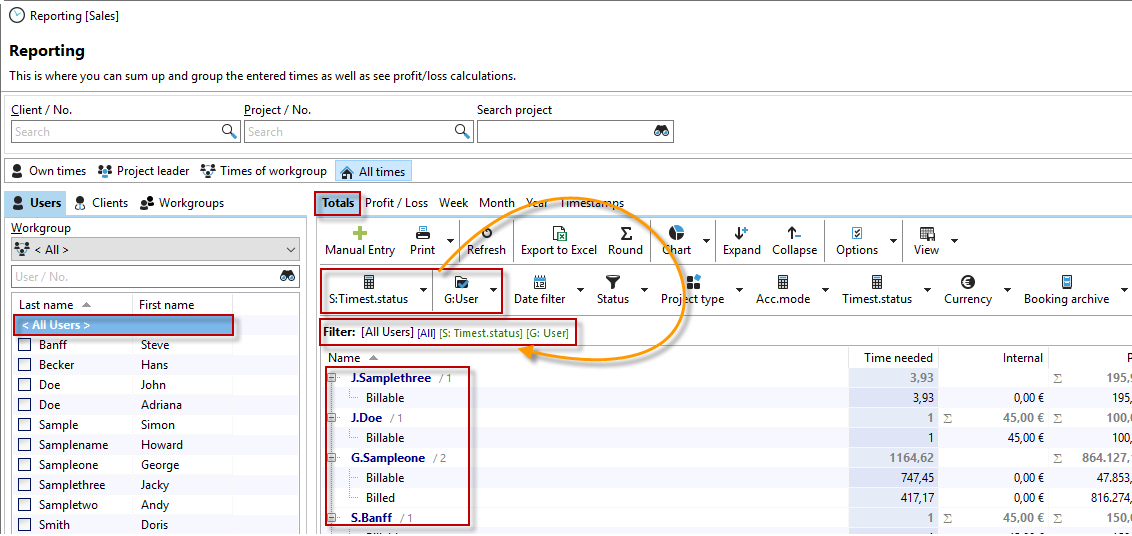
How many hours has the employee recorded in a year (S: Year, G: Employee)
Set the summation to "Year" and the grouping to "Employee." In the date filter, you can also apply restrictions, e.g., this year or last year. Now you can see how many hours each employee has recorded for the corresponding year.
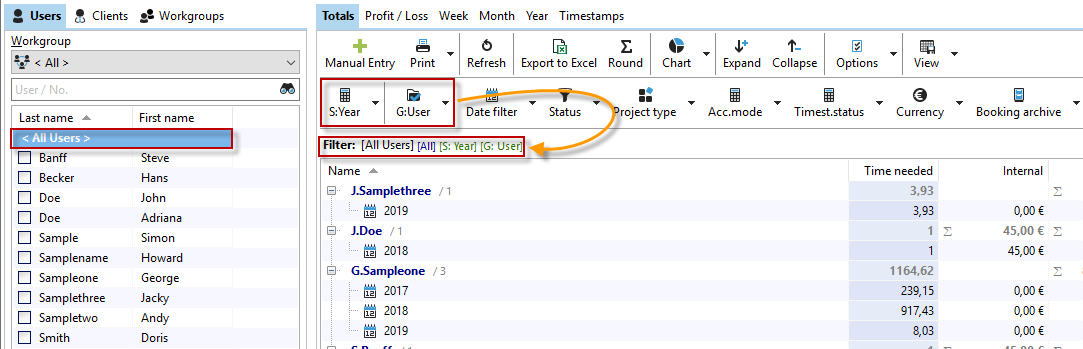
How many hours were spent on which projects for which customers? (also by main project, subproject, and task) (S: Main Project, G: Customer)
Would you like to know which customer projects the time was spent on? Set the summation to "Main Project" and the grouping to "Customer."

How many hours were incurred per customer? (S: Customer, billing mode: Internal calculation & billing)
To show how much recorded time was booked in relation to a customer, you should filter the projects with the billing mode "Internal calculation & billing only." This will also show you the customer's projects that are not billed to them but should still be calculated internally.
Non-billable projects are irrelevant here, as they are not included in either the cost factor or the time factor.
So set the summation to "Customer" and the billing mode to "Internal calculation & allocation only."

Which customer needs how many hours of a certain project type (P: Project type, C: Customer)
Have you assigned different project types to your projects? Excellent, because now you can run an evaluation and check how many hours have been spent on specific project types. In the example, 27 hours were booked for travel time.

Which customers were worked for in year x (S: Customer, G: Year)
Use this filter setting to display the top customers of the year. Set the summation to "Customer" and the grouping to "Year." Then sort by the "Price" column. This will show you the customer who achieved the highest price in the calculation at the top of the list.

Which were the most time-consuming tasks per customer
To get a list of the customers who took up the most time, set the summation to "Task" and the grouping to "Customer" and the billing mode to "Internal calculation & billing only." Now sort the columns by "Time required." You can now see your most time-consuming customers at a glance.

How much effort was required for each customer per billing mode (S: billing mode, G: customer)
It may be interesting to have an overview of how many hours were booked for the different project billing types. Check the hours incurred by setting the summation to "Billing mode" and the grouping to "Customer."
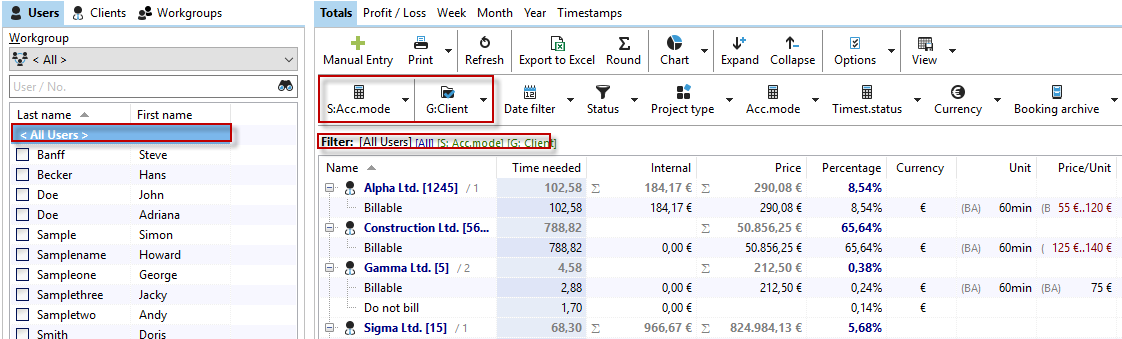
For which customers were non-billable times recorded, or are there still unbilled time stamps (S: Time stamp status, G: Customer)?
If you want to check whether timestamps still exist for certain customers, be sure to set the filter for the billing mode of the projects to "Bill." This is because only the timestamps of the projects that are to be billed to the customer are of interest in this evaluation.
Set the summation to "Time stamp status" and the grouping to "Customer." Now you can see at a glance which time stamps have already been billed, have not been billed, or still need to be billed.

Which times were incurred for which customers in which month? (M: Month, C: Customer)
In this case, you should also set the filter for the billing mode of the projects to "Internal calculation & billing only," as projects with the status "not billable" are not relevant for this evaluation. This is because the time stamps recorded for "non-billable projects" should not be included in the total time.
Set the summation to "Month" and the grouping to "Customer."

How many times were recorded per employee in a year (Y: Year, C: Customer)
Set the summation to "Year" and the grouping to "Customer." This gives you an overview of how much time an employee has recorded over the entire year. In the example, the filter was set to one employee and to all billable and internally calculable projects (restriction via the billing mode filter).
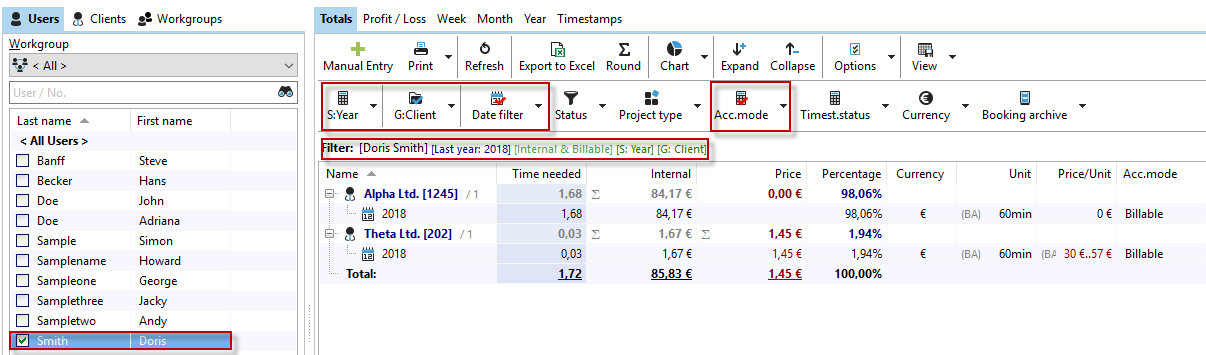
How many hours were incurred per project type? (Filtering by employee possible)
If project types are used, you can use them to total the recorded times. This allows you to see directly how many hours were spent on customer meetings, for example. To do this, set the summation to "Project type." Grouping is not necessary in this case. In the example, the filter was explicitly set to a specific employee.

How many hours are spent on billable, non-billable, and internal projects? (S: Billing mode)
You can get an overview of the project times that are included in the different project billing modes by setting the summation to "Billing mode." In the example, we filtered by all employees.
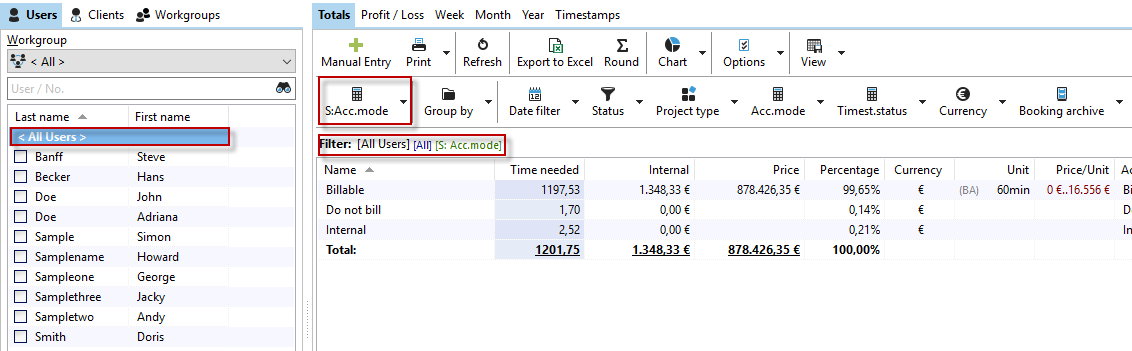
Have the project times been billed? Are there any open timestamps? (S: Timestamp status, billing mode: Bill).
Filter across all employees and the project billing mode "Bill" to see if there are still timestamps that are in "Bill" mode, i.e., have not yet been billed to your customers. Of course, you can group this view further to obtain detailed information.

Which projects/for which customers were recorded in which currency (S: Projects/Customers, G: Currency)
In Xpert-Timer, it is possible to use different currencies. This allows you to assign a specific currency to each customer. To check which projects are assigned which currencies, set the summation to "Projects" and the grouping to "Currency." This will show you which currency is used for which customer or project.

Which tasks are associated with which projects, and are any tasks already in progress? (S: Task, G: Project, filtered by project, possibly also by customer)
If you want to check whether a specific task is already in progress, set the summation to "Task" and the grouping to "Project." It is also best to filter by the corresponding customer and project. This will give you a nice overview of the times already recorded for a task.

Which tasks were processed in the month/year? (S: Task, G: Month)
Set the summation to "Task" and the grouping to "Month." You will now see an overview of how many hours were recorded for a task in each month. Here, too, you can filter by customer or project.
How much time was spent on a customer's project type (S: Project type, G: Customer)
Would you like to know how much time was spent on a customer's different project types? Set the summation to "Project type" and the grouping to "Customer." You can also filter by customer and display only billable and internally calculated projects.

How much time was spent on a project type per month/year (S: Project type, G: Month/Year)
Filtering is based on the billing mode of the project (internal calculation & billing only) and "All employees." The data is summed by "Project type" and grouped by "Month." This allows you to see at a glance in which months time was recorded for specific project types. Of course, you can also filter for a specific project type using the filter settings.

What is the total amount of non-billable/billable/already billed time per project (S: Time stamp status, G: Project)
To see whether there are any timestamps that have not yet been billed for a specific project, you can set the total to "Timestamp status," the grouping to "Project," and the project billing mode filter to "Internal calculation & billing only."

Are there any time stamps that have not yet been billed in the month (S: Time stamp status, G: Month/Year)
If you want to check whether there are any unallocated timestamps in a month, select the "Timestamp status" total, the "Month" grouping, and set the billing mode to "Allocate." This will only display the timestamps that should be included in the billing.

Which times were incurred for which project in which month? (S: Month, G: Project)
Of interest here are all recorded times for internally calculated projects and projects that can be billed. This allows you to see how much time was recorded in which months.

How many times were incurred per project in a year (S: Year, G: Project)
Here you can see an overview of how much time was recorded for the project in each year.

Which projects were worked on under which project manager and how much time was recorded (S: Project, G: Manager)
