You can generate a large number of reports directly from the Project Manager.
Filter your timestamps as you wish and use them to create completely customized reports. You can also find a large number of sample reports in the chapter "Evaluations" -> "Filters and groupings."
Here are a few examples:
Daily evaluation
1. Set the date filter to today's date:

2. Select "Day" as the grouping.
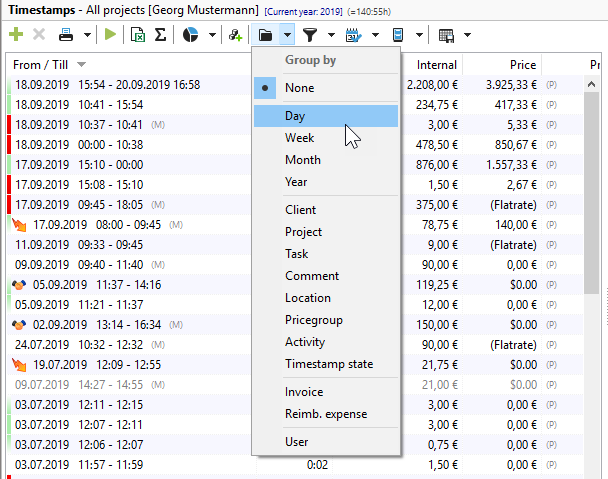
3. Check the box next to "All projects."

4. Click on the printer icon.
This will give you a report on your project activity for today:

Project list by date range
If you want to create a report for a specific date range (in our example: April 2018), sorted by projects with project times, proceed as follows:
1. Select the desired date range using the date filter.
2. Group by project
3. By clicking on the column headers, you can show or hide columns in the timestamps. Hide the comment and show the prices.

Project list with costs, and comments
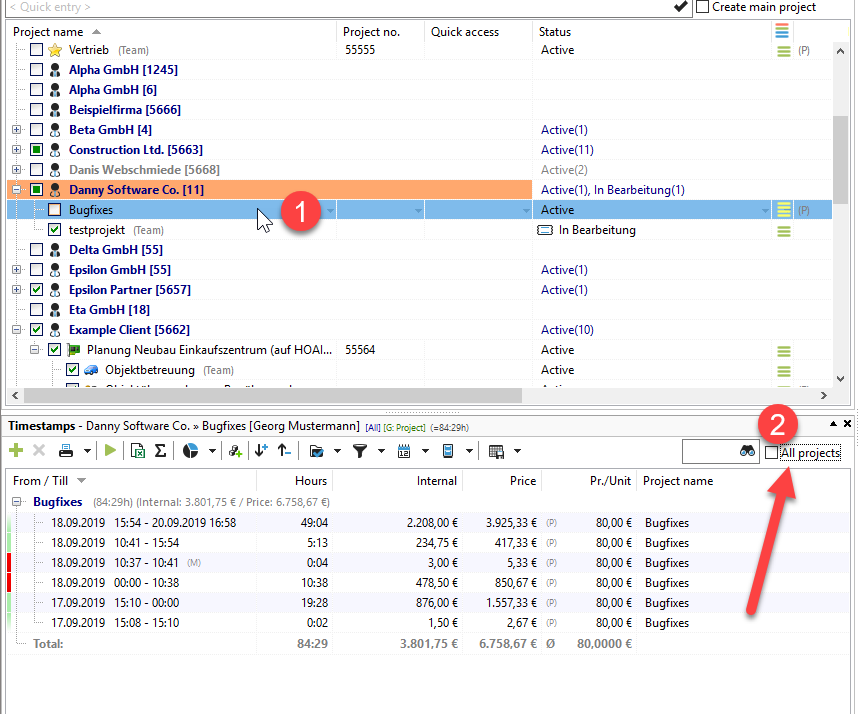
If you click on a main project in the project manager list and uncheck the "All projects" box in the timestamp list, you will only see the timestamps for the project selected in the project manager. You can choose to show or hide columns again. In this example, we show the following columns: From/To, Hours, Internal, Project Name.
|
Tip |
|---|---|
Experiment with printing timestamps! Group, set filters, etc. In the evaluation module, you can also narrow down and display date ranges. |
|
