
Update check at startup |
Stay up to date with Xpert-Timer and select the automatic update check when starting the program and the desired check interval. Once a month should be sufficient. You can check for the following updates: Function enhancements: These are new functions in Xpert-Timer, not bug fixes. for bug fixes and feature enhancements: You will receive an update notification when we have fixed bugs or added new features to the program. Beta versions: If you are interested in beta versions, you can check here to see if new beta versions are available. Please note that beta versions should not be used in a live system, as we cannot guarantee the stability of the software. |
Background recalculation of project times |
Due to unforeseeable circumstances, it may happen that the final total for a project does not match the sum of the time stamps. With automatic background recalculation, the totals are recalculated daily at a fixed time of your choosing. This option should only be set by a single employee in the company and is only executed if that employee's Xpert Timer is also running at that time. |
Use project assignment |
Please refer to the chapter Enabling/disabling project assignment |
Assign project number automatically |
Xpert-Timer can assign numerical project numbers automatically. However, this only works if numerical numbers have been assigned from the beginning. |
Request security code before deleting customers and projects |
To prevent projects from being deleted accidentally, you can also request a security code before deletion. The employee must then manually enter the specified number to actually delete the project or customer. 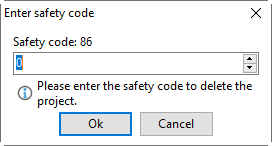 |
Set subproject number to main project number |
If you want your subprojects to always have the same project number as your main projects, you can activate this function. |
Split timestamp at midnight |
By default, a timestamp is not split into two timestamps at midnight. However, sometimes companies have a need for this. |
Warning when project estimate is exceeded |
If a project exceeds the estimated time during time tracking, a warning is displayed in a pop-up dialog. The total amount for the project is also displayed in color. |
No project start if estimate is exceeded |
If the estimate for a project is exceeded, no more time can be booked to the project. This setting also applies when moving times. |
Allow additions |
You can restrict employees to only entering retroactive additions for up to a certain number of days. If this period is exceeded, the option to add retroactive additions for the timestamp is blocked. |
Allow time changes |
Specify whether employees are allowed to change times or restrict how many days this can be done retroactively. |
Internal company currency |
This is the currency used to calculate internal costs. |
Billing rate for new projects |
Select the billing rate for new projects, e.g., your own billing rate, last used billing rate, from main project, from employee, or from price list. |
Industry |
Here you can set industry-specific terms for your Xpert-Timer. As a lawyer, for example, you work with clients rather than customers.
|
Letter salutation |
Here you can specify how letters to your customers are addressed. |
Password policy |
Here you can specify the minimum number of characters that must be included in your employees' passwords.
|
Connect external ticket system |
If you use an external ticket system, you can jump directly to the external ticket via the URL and the link of a timestamp with the ticket ID of the system. |

