Xpert-Timer was developed for you to quickly and easily record time spent on projects or activities. Once you have created your first project in Xpert-Timer, there are several ways to start time tracking for this project:
Start the project in the project manager
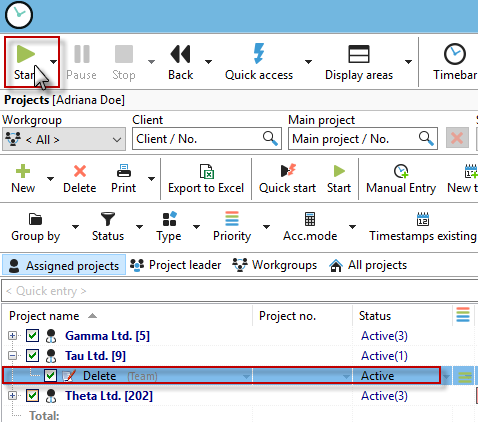
Select a project from your project list with the mouse and click on the "Start" button.
Starting the project via the timeline
You can also start the project from the drop-down list on the timeline:

Starting the project using keyboard shortcuts
If you have assigned a shortcut to the project, you can use the keyboard shortcut to start a project without clicking the mouse.

Starting projects via the timestamp list
If you have selected a timestamp in your timestamp list, you can simply start the corresponding project by clicking the "Start" button in the timestamp list.

Other ways to start projects
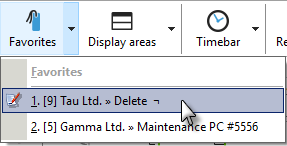
The favorites list: If you have created a favorites list, you can start projects directly from the favorites list with a single click:
Drop-down menu on the start button in the project manager:

Start project retroactively |
Here you can start a project retroactively. You can use this function if you have forgotten to switch projects. Select the new project in your project manager with the mouse and select "Start project retroactively." Xpert-Timer will now ask you at what point you would like to complete the old project and start the new one. |
Start project with comment |
If you want to start a project with a comment as an exception, you can do so here. |
Always start projects with a comment |
Check the box "Always start projects with comment" if, for example, you are only working on projects today that require a comment to be entered. With this option, you avoid changing the general project settings - just for this one day. |