To create a new price list, click on "New price list" and assign a meaningful name.
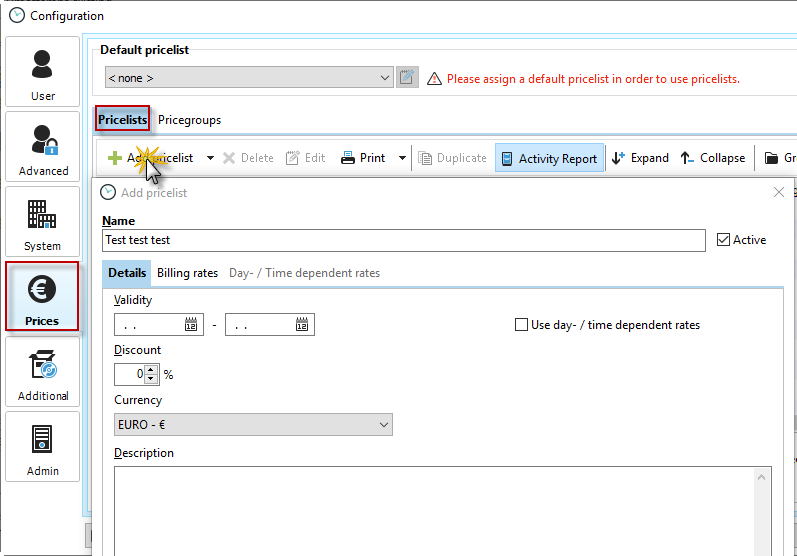
Set the validity date in the "Details" tab. The end date of validity is not mandatory.
Any discount selected will apply to all billing records. Then
select the currency for your price list, for example, if you have customers abroad, and enter a short description of the price list if necessary.
We will discuss the "Use day/time-dependent rates" option in the second image.
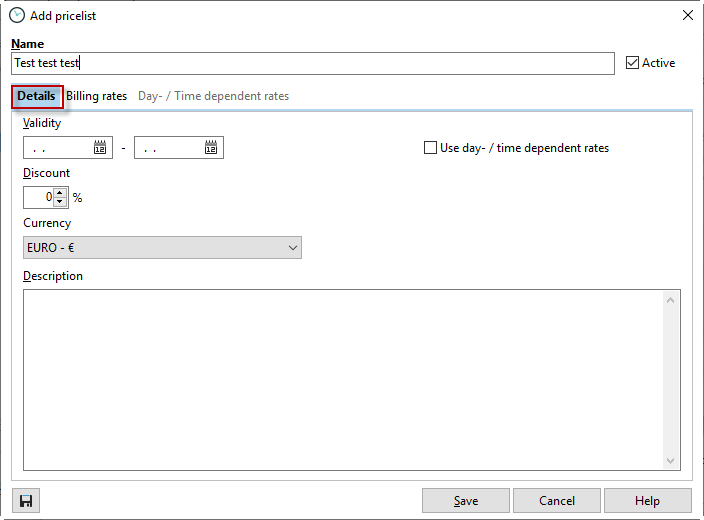
If you have activated "Use day/time-dependent rates" in your new price list, the corresponding tab in the dialog box becomes active and you can make entries.

In the "Day/time-dependent rates" tab, enter the corresponding validity period for your billing rates. You can specify exactly when the prices in your new price list should apply. For example, you can create special surcharges for overtime, weekend work, or holidays. Use the factor for this.

Then switch to the "Billing Rates" tab. Here, select from the available price groups that you created in the configuration in the Prices area under the Price Groups tab and assign the corresponding billing rates:
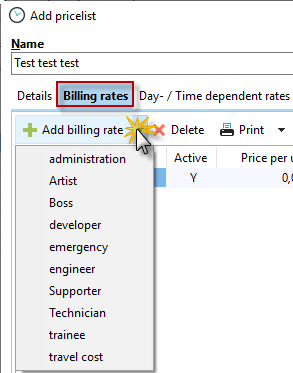
After you have selected a corresponding price group, you can enter the price per unit and all other entries directly in the list displayed.
