You can combine different price lists in projects. For example, the main project has set a price list.

Your subprojects will react differently depending on whether you have stored a separate price list for the respective subproject or not. Here are two examples.
Example 1
The subproject has the setting "From price list" --> without a set price list in the project properties under the "Billing" tab.
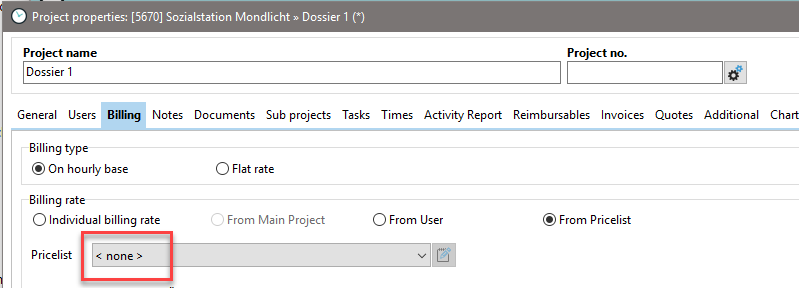
In this case, the price list of the main project is used. This is also indicated by an [MP] (main project) in the Price list column in the Project Manager.

Example 2
The subproject has the setting "From price list" --> Selected price list in the project properties under the "Billing" tab.

This means that the subproject has its own price list. You can also see this in the Price list column in the Project Manager.

The price list is taken from the main project. This means that if the setting is "From price list" -> "None," the price list stored in the system configuration as the "Standard price list" is used. In the example, this is the "Base prices" list.
Even if the price list is taken from the subproject and the main project does not have a price list, the price list stored in the system is assigned to the subproject.

In the Project Manager, this is indicated by [System] after the price list.

In the Project Manager, you can easily assign price lists to projects. To do this, first right-click on the column headers to display the "Price list" column. Next, right-click on the project row in the "Price list" column to select the appropriate price list for the project.

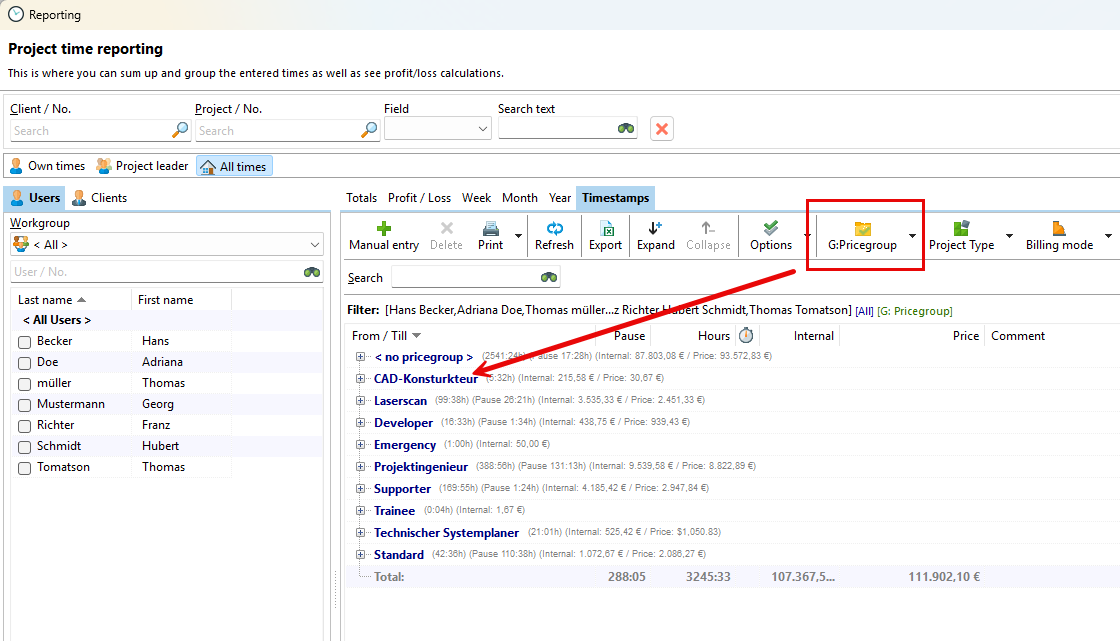
In the evaluation, you can group the individual times by price group. This gives you a better overview of the price groups used.