Select "Window" -> Project Start Center to open the dialog box for quick entry and your barcode scanner.

The Project Start Center offers a convenient, fast way to enter project times. So if you are looking for an alternative to the timeline, this is the right place for you. Optionally, you can also display the recorded daily and weekly times to keep track of your total working time. You can also quickly and easily edit and add to the timestamp comment here.

Keyboard shortcuts allow you to quickly switch between projects and enter additional information.

Start and stop projects via barcode/QR code or NFC tag
To start or stop projects with a barcode scanner, you must first activate the function in the configuration. You will find the setting in the "Advanced" section of the "General" tab.

This will add another line to the project start center with the input line for the barcode.
The barcode must contain the project number or task ID to identify the project or task, and must start with P for project or A for task.

For the above-mentioned project, the barcode would therefore be: P 505332. Create a QR code for your file using the barcode button in the scanner entry or in the project properties. Since the barcode scanner is a text scanner, the focus (cursor) must be in the scanner entry field.

When the QR code is scanned, Xpert-Timer stops the currently running project and switches to the scanned one.
This is an example QR code for P 505332:

Example of use
Employees work via the project start center.
Several employees work on one PC.
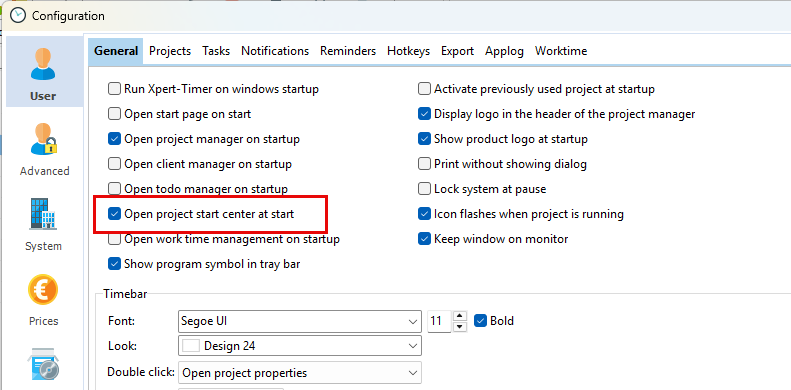
The Xpert-Timer configuration is set so that the start center opens when the program is launched.
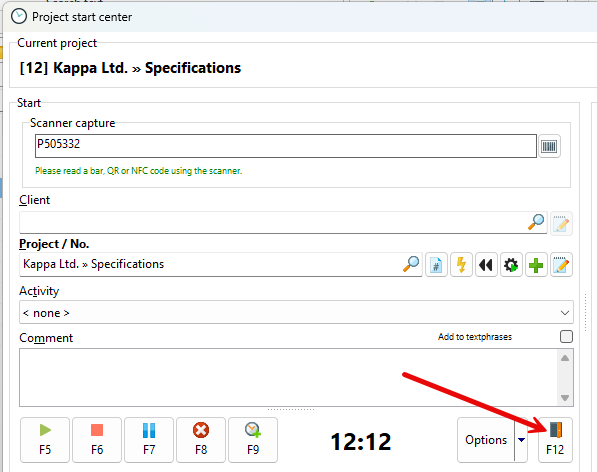
An employee records the time spent on a project or activity. When they have finished their work, they press F12 to log out of the system.
To improve the workflow, "Do not show dialog again" should be set in this dialog so that pressing F12 leads directly to the login dialog without interruption.
